AI Video to Prompt

AI Video to Prompt Generator

Upload a clip and get a time-coded prompt for every shot. Edit it, then recreate the shot with Seedance, Kling or Veo.

  • Seedance 2.0
  • Kling 3.0
  • Veo 3.1
  • Grok Imagine
  • MiniMax H3
The result will appear here when it is ready.
01

Try video to prompt on a sample clip

See the shot breakdown and time-coded prompt our analysis returned for each sample clip. Compare the camera movement, lighting and action it describes with what you see.

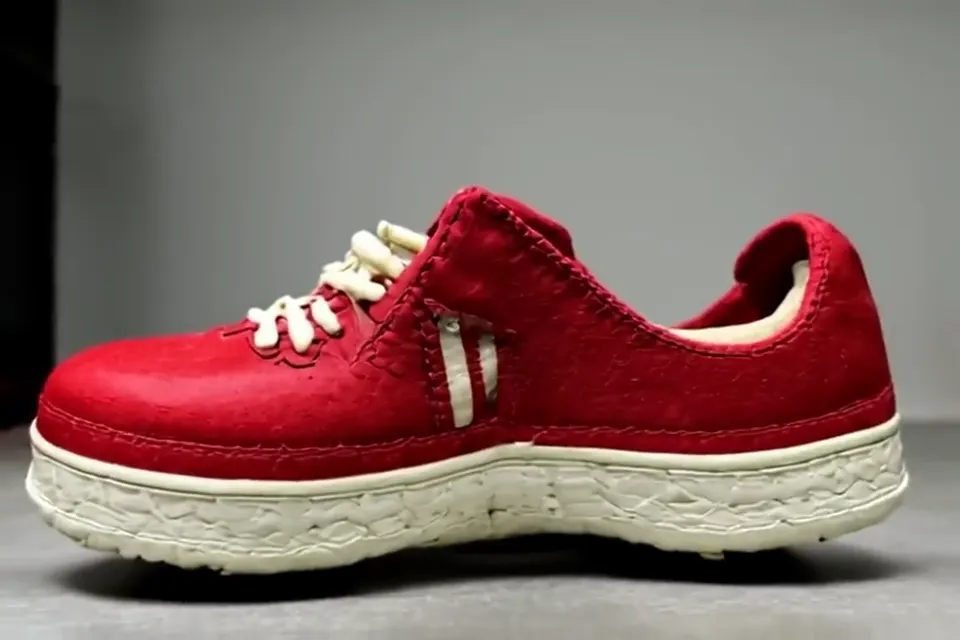
00:00.0 – 00:04.0
Shot type
Close-up
Camera movement
Slowly zooms out from close-up of a single red sneaker with white laces and sole.

Red shoe (single)

A stationary side view of a vibrant red leather casual sneaker with cream-colored stitching details around the eyelets and heel tab, paired with off-white textured rubber midsole featuring intricate patterned grooves; captured in soft natural light against a plain grey backdrop as subtle horizontal panning reveals more context of its placement on a smooth concrete floor.
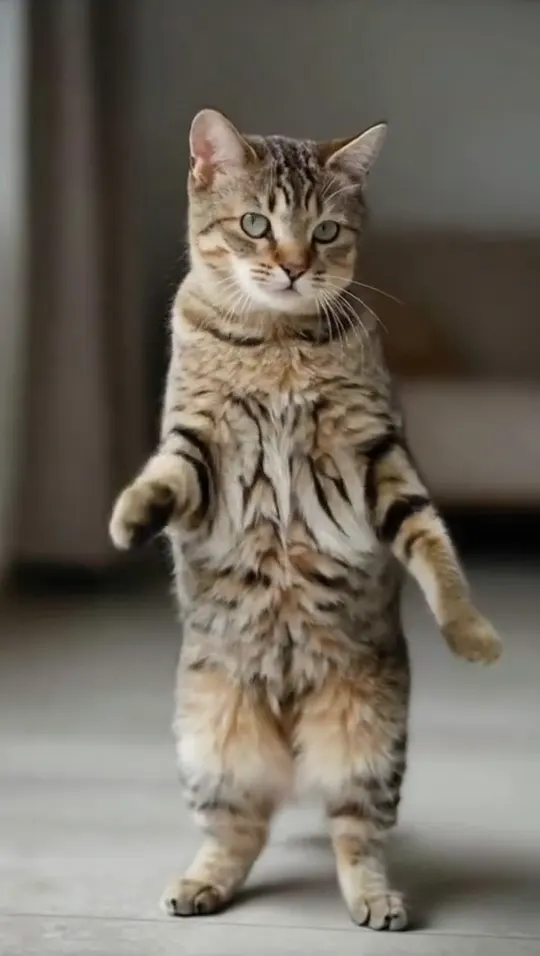
00:00.0 – 00:08.2
Shot type
Single take
Camera movement
Stationary

A tabby cat with a striped coat and green eyes

A playful brown tiger-striped housecat stands tall indoors against an unfocused home interior backdrop under gentle illumination; it gracefully shifts between standing fully erect or partially bent at hips while making expressive hand movements—lifting right forepaw to touch nose then swiftly retracting it, alternately moving left rear leg upward before returning back down, finally ending by holding up two outstretched hands.

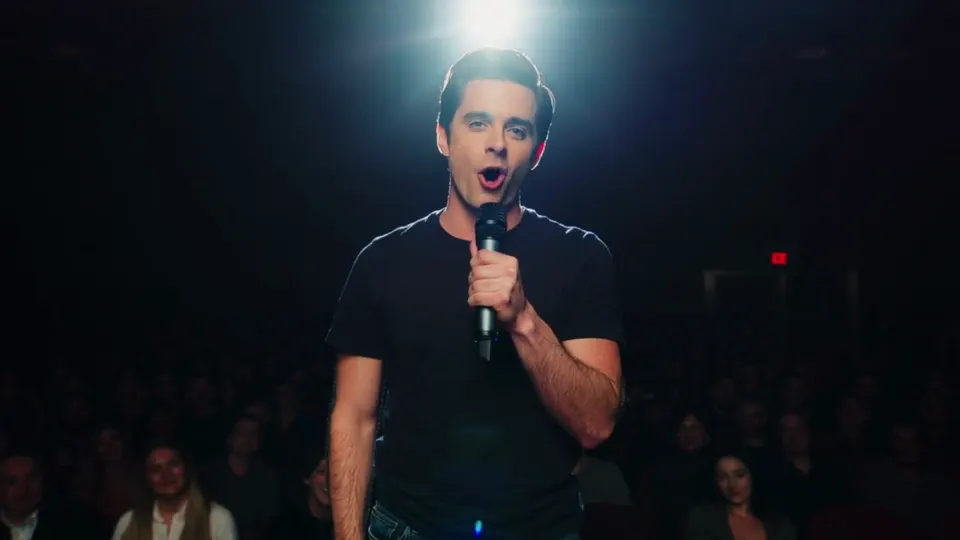
00:00.0 – 00:10.0
Shot type
Medium shot
Camera movement
Stationary

A man in a black t-shirt and jeans holding a microphone

A stand-up comedian performs live under bright spotlights wearing a plain black T-shirt while addressing engaged crowd, raising right hand for comedic effect.

00:00.0 – 00:05.0
Shot type
Wide shot
Camera movement
Static

Red toy sports car

A small bright red sporty model car enters a white platform stage from the right edge moving steadily across its length until stopping at mid-frame oriented front-facing before reversing course smoothly heading off-screen again to the opposite end while text captions appear sequentially below describing each motion step.

On-screen textThe red car moves to the left.It changes direction.Then it returns to the right.
02

What you get from every video

This video to prompt generator returns a shot list, a separate list of on-screen text and a one-sentence summary of the overall style.

  1. Shots with start and end times

    The clip is described as a list of shots, each with start and end times that stay within the video's real length. It works best on a single scene or a few slow cuts, so check the shot boundaries before you recreate.

  2. Camera, light and color per shot

    Each shot describes framing, camera movement, subject, action, setting, lighting, color grade and mood. A 40–80 word prompt brings those details together.

  3. On-screen text kept separate

    Captions and other visible text appear in their own list. You decide which words, if any, belong in your next prompt.

  4. Copy one shot or export JSON

    Copy an individual prompt, use Copy all for the full sequence, or download the structured shot list as JSON with its timecodes and visual details.

video-shot-list.json
{
  "duration_sec": 5,
  "overall_style": "Simple, minimalistic",
  "on_screen_text": [
    "The red car moves to the left.",
    "It changes direction.",
    "Then it returns to the right."
  ],
  "shots": [
    {
      "start": "00:00.0",
      "end": "00:05.0",
      "shot_type": "Wide shot",
      "camera_movement": "Static",
      "subject": "Red toy sports car",
      "action": "Enters from right frame, drives towards left side of screen, stops in center facing forward, then starts driving back toward right frame.",
      "lighting": "Even, soft diffused lighting"
    }
  ]
}
03

From reference clip to a new video

Use AI video to prompt to carry a reference shot's camera movement and lighting into a new scene. Adapt the prompt, then take it straight to generation.

Recreate any shot in one click

Choose Recreate on a shot to open the video workspace with its prompt and your selected model already filled in. Generate from that starting point.

Swap the subject or product, keep the camera

Enter a new subject or product in Replace subject with… and choose Adapt. The rewrite preserves camera movement, pacing and lighting, while removing descriptions of captions, watermarks and logos.

One account for prompts and generation

Analyze the reference and generate your version on the same site. Your chosen shot goes directly to the workspace, so you can keep working from its prompt.

04

How to convert a video to a prompt

Go from a reference clip to a prompt you can edit in three steps.

  1. 1

    Upload a clip

    Choose an MP4, MOV or WebM file up to 60 seconds long. Sign in when you are ready to analyze it.

  2. 2

    Get the shot list

    Review each shot's timecodes and visual details alongside its prompt. Check the overall style and the separate on-screen text list.

  3. 3

    Edit and recreate

    Edit a shot's prompt or use Adapt to rewrite it for your chosen model. Add a subject replacement if needed, then choose Recreate to continue in the video workspace.

05

Prompts formatted for the model you use

Choose a target model and use Adapt to rewrite an individual shot in its format. Choose Generic for a prompt you can use across models.

Seedance 2.0

For Seedance 2.0, describe the shot's action timing and camera path within your sequence.

Kling

For Kling 3.0, spell out how the subject moves and how the camera follows.

Veo 3.1

For Veo 3.1, describe the framing, scene lighting and order of actions in the shot.

Grok Imagine

For Grok Imagine, put the subject, setting and visible action into a direct scene description.

MiniMax H3

For MiniMax H3, describe the camera movement, action rhythm and mood you want to carry forward.

06

Who uses video to prompt

Use video to prompt to study how a reference is filmed and plan which parts to carry into your own scene.

Product ad remakes

Start from a reference product shot, then replace the item with your own. Keep the camera path and lighting as the basis for a new product scene.

Trend and UGC recreations

Break a short clip into shots and actions to study its rhythm. Adapt individual shots around your own subject before generating a new version.

Storyboards for filmmakers

Use the time-coded shot list as a written breakdown of framing, movement and scene changes. Export the JSON to keep those details with your planning notes.

Learning how good prompts are written

Compare what you see in a clip with the words used to describe it. Each shot shows how camera direction, action and lighting fit into a single prompt.

Need a prompt from a still image?

Upload one image to get a prompt for GPT Image, Nano Banana or Seedream. Take the result directly to the image workspace to generate a new version.

Image to Prompt
07

Video to prompt FAQ

How does AI video to prompt work?

Upload a clip and sign in to analyze it. AI video to prompt describes the clip as a list of shots, each with start and end times, visual details and a 40–80 word prompt. Shot boundaries are estimates, so review them, especially on clips with many fast cuts. You can then edit, copy or adapt any shot before taking it to the video workspace.

Which video formats and lengths can I upload?

Upload an MP4, MOV or WebM video up to 60 seconds long. If your reference is longer, trim it to the part you want to analyze before uploading. A single scene or a few slow cuts gives the most accurate shot list.

Can I paste a YouTube or TikTok link instead of uploading?

Currently, only file uploads are supported. You cannot paste a YouTube or TikTok link; download the clip first, then upload the video file.

Which AI video models are the prompts written for?

Use Adapt to format a shot's prompt for Seedance 2.0, Kling 3.0, Veo 3.1, Grok Imagine or MiniMax H3. You can also choose Generic for a model-independent prompt.

Will the recreated video look exactly like my reference?

The prompt is a reference starting point, so an exact match is not guaranteed. Use the shot's camera movement, action and lighting to guide a new version, then edit the prompt around the details that matter to you.

Can I change the subject or product before I generate?

Yes. Enter your new subject or product in Replace subject with… on an individual shot, then choose Adapt. The rewrite keeps camera movement, pacing and lighting while removing descriptions of captions, watermarks and logos.

Does it read captions and on-screen text?

Yes. Visible text is listed separately from the shot details, so you can decide whether to include it in a prompt. Adapt removes descriptions of captions, watermarks and logos from the rewritten prompt.

Is the video to prompt generator free?

New users receive signup credits to get started. You need to sign in to analyze a video, and both analysis and video generation use credits. See Pricing for the available plans.

Can I use someone else's video as a reference?

You can study a reference's framing, camera movement and pacing to inform your own shots. Use material you have the right to use, and avoid copying someone else's logos, identifiable likenesses or copyrighted content. You are responsible for having permission to use your source material.

Who can see the videos I upload?

Your uploaded video is used only to generate your results. It is not added to the public showcase.

Turn your next reference video into a prompt

Start with one clip and choose the shot you want to build on. Use the video to prompt generator to get its prompt, replace the subject and continue in the video workspace.